
Your account and our emails
How to create your account, confirm your email and sign in, and what to do if our emails don't arrive.
Create an account
Signing up takes two minutes. You need an email address you use and a phone number.
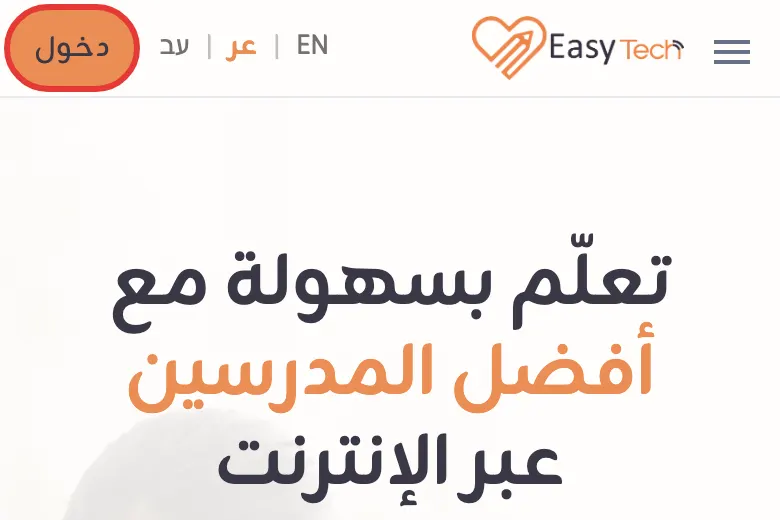
Tap «Sign in»
The «Sign in» button is at the top of every page on the site. (The screenshots in this guide show the Arabic version of the site; the buttons are in the same places.)
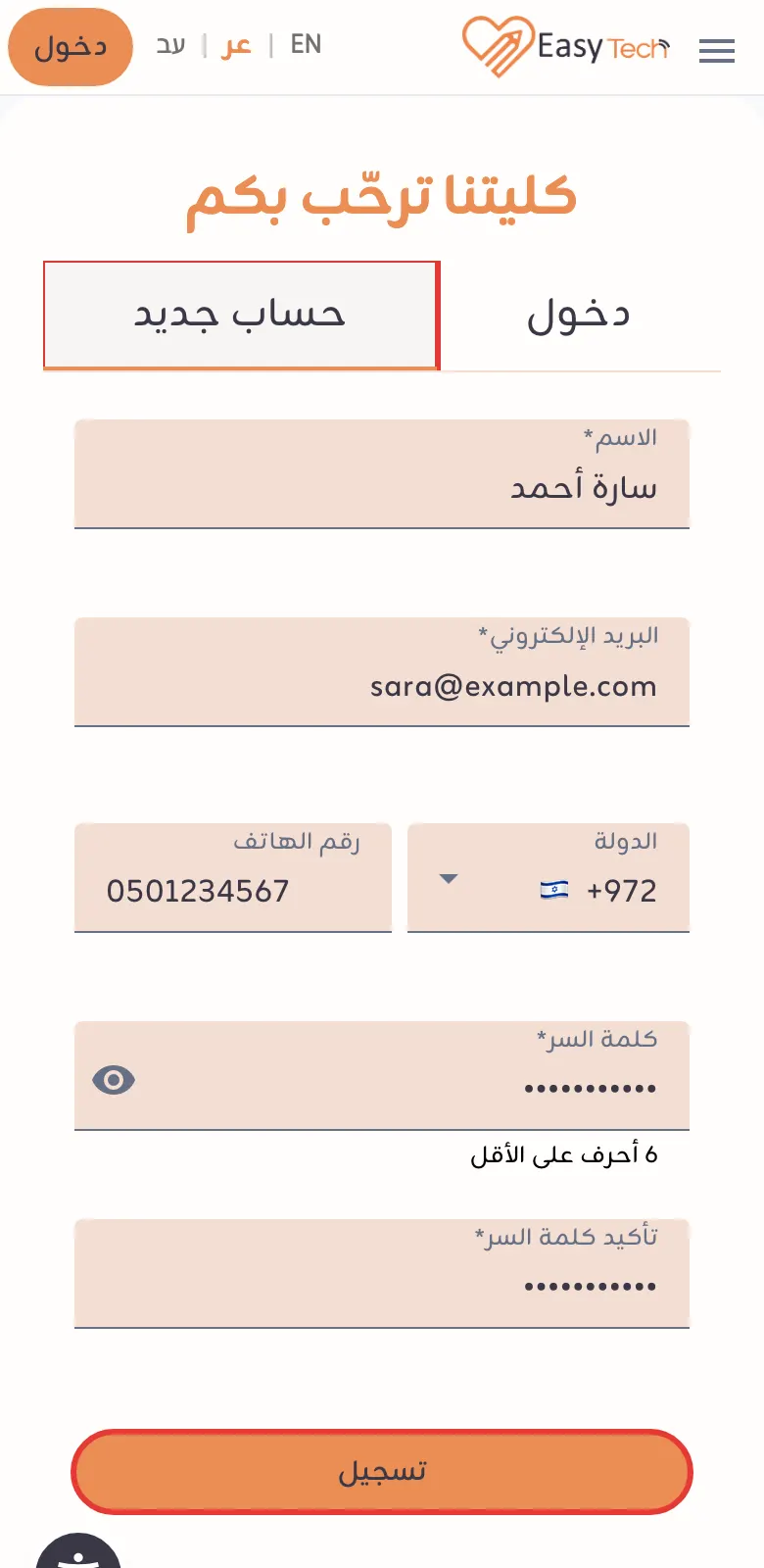
Choose «New account» and fill in the form
Enter your name, email and phone number, choose a password of at least 6 characters and type it again to confirm, then tap «Sign up». You can also sign up with your Google or Apple account using the buttons under the form.
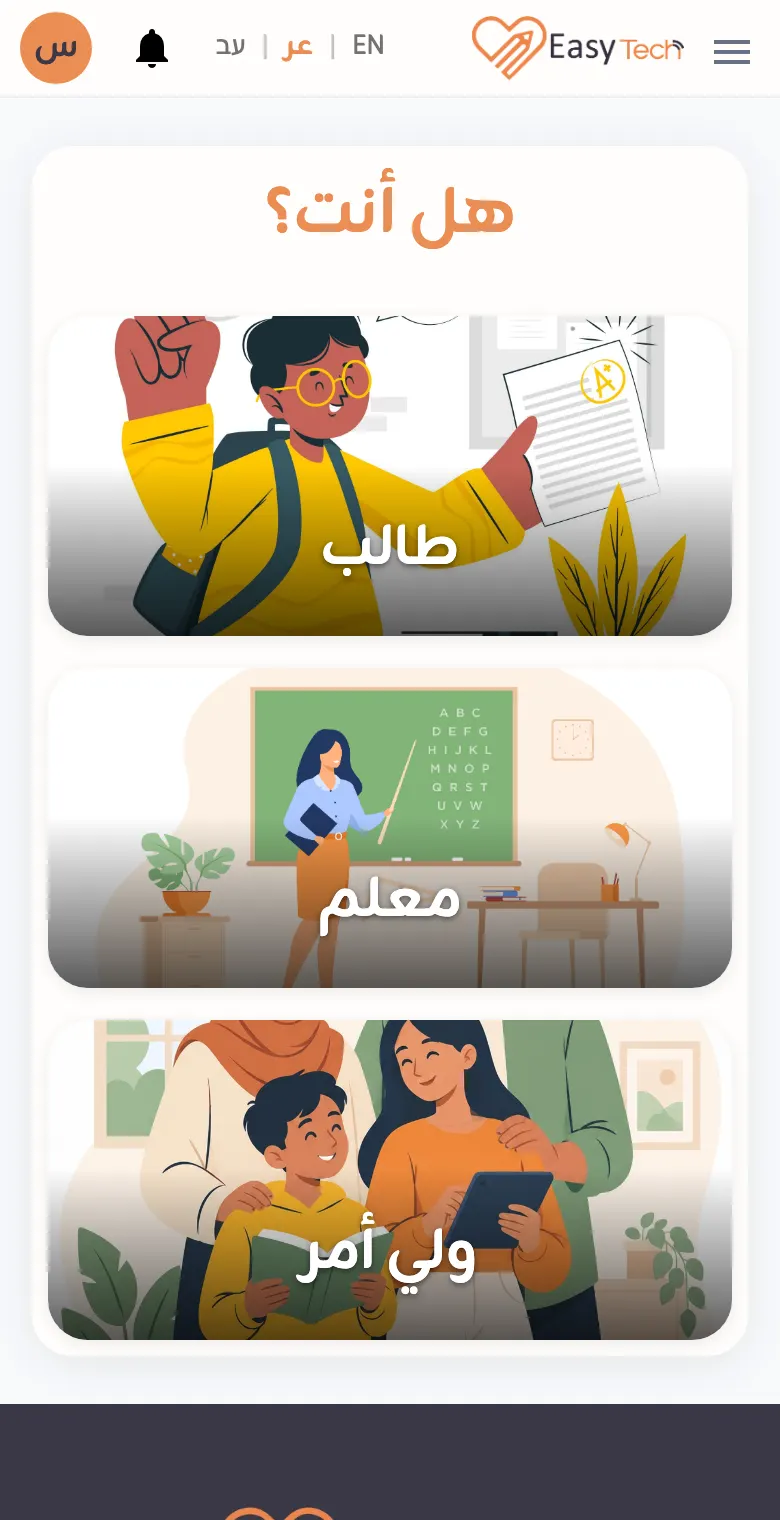
Choose your account type
Choose student if you're here to learn, tutor if you're here to teach, or parent if you'll book lessons for your children.
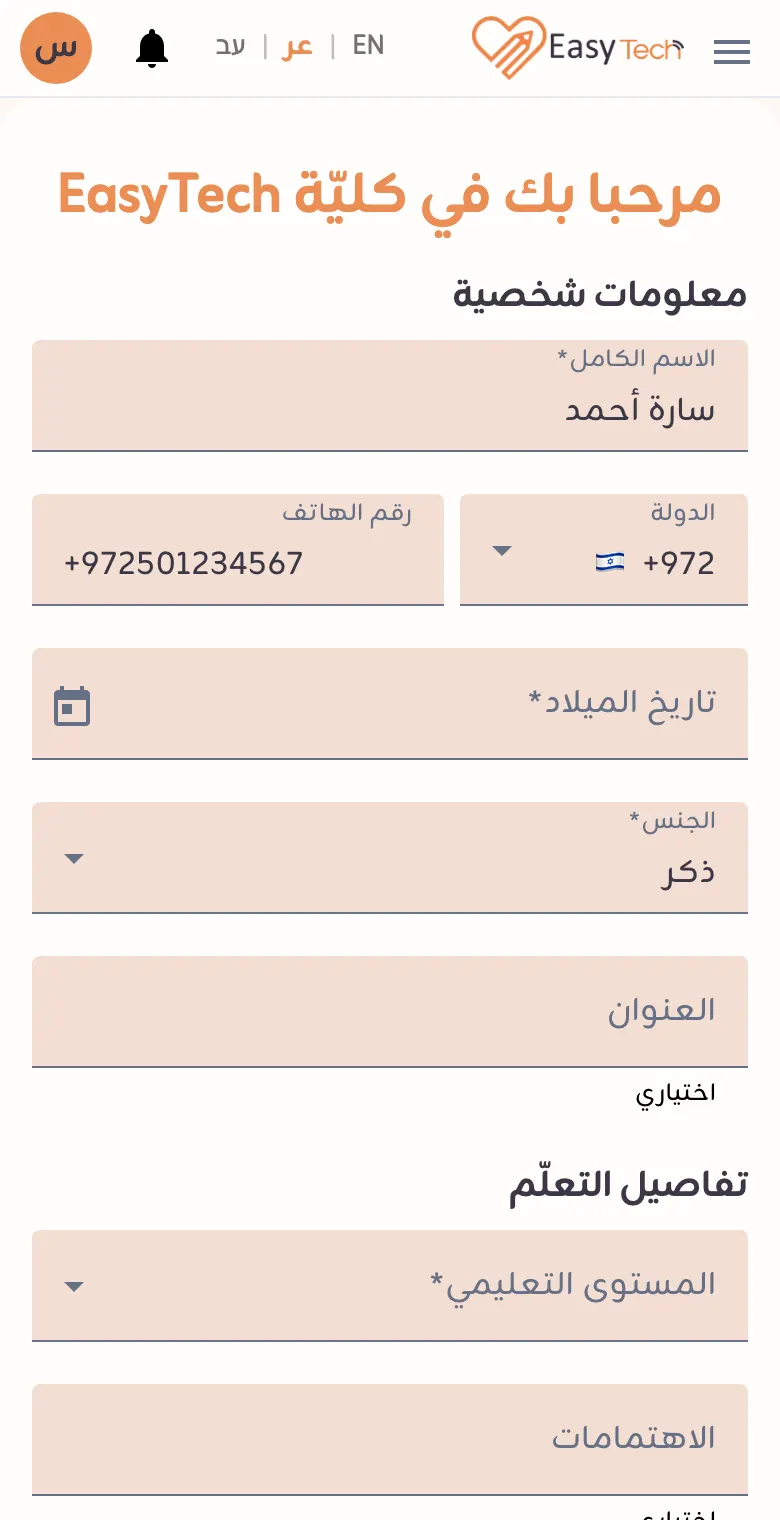
Complete your details
Fill in the required fields (marked with a star) and save; you'll land on your dashboard.
Confirm your email
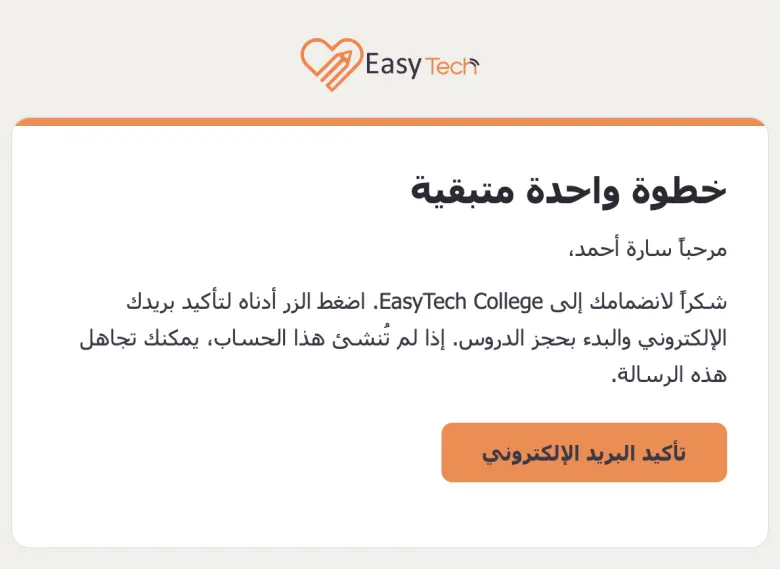
Right after you sign up we send you an email to confirm your address. You need to confirm it before you can book lessons or apply to teach.
Open our email and tap the confirm button
It comes from noreply@easytech.college, in the language you use on the site.
Go back to the site
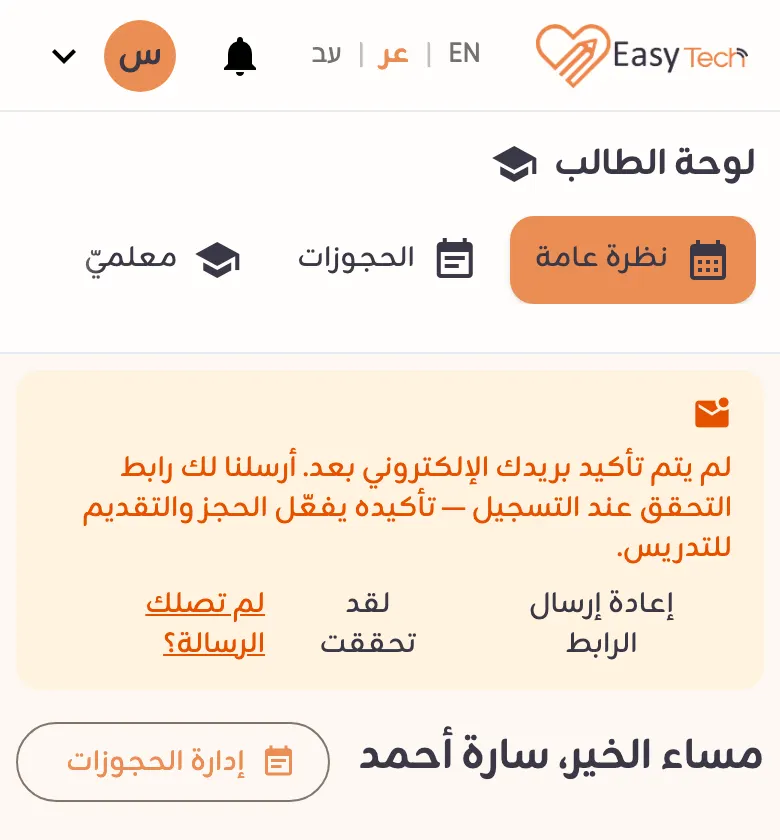
If the orange notice is still on your dashboard, tap «I've verified». No email? Tap «Resend link», then look for it in your spam folder as described in section 04.
Sign in and forgotten passwords
Always sign in the way you signed up: with your email and password, or with the Google button.
Sign in
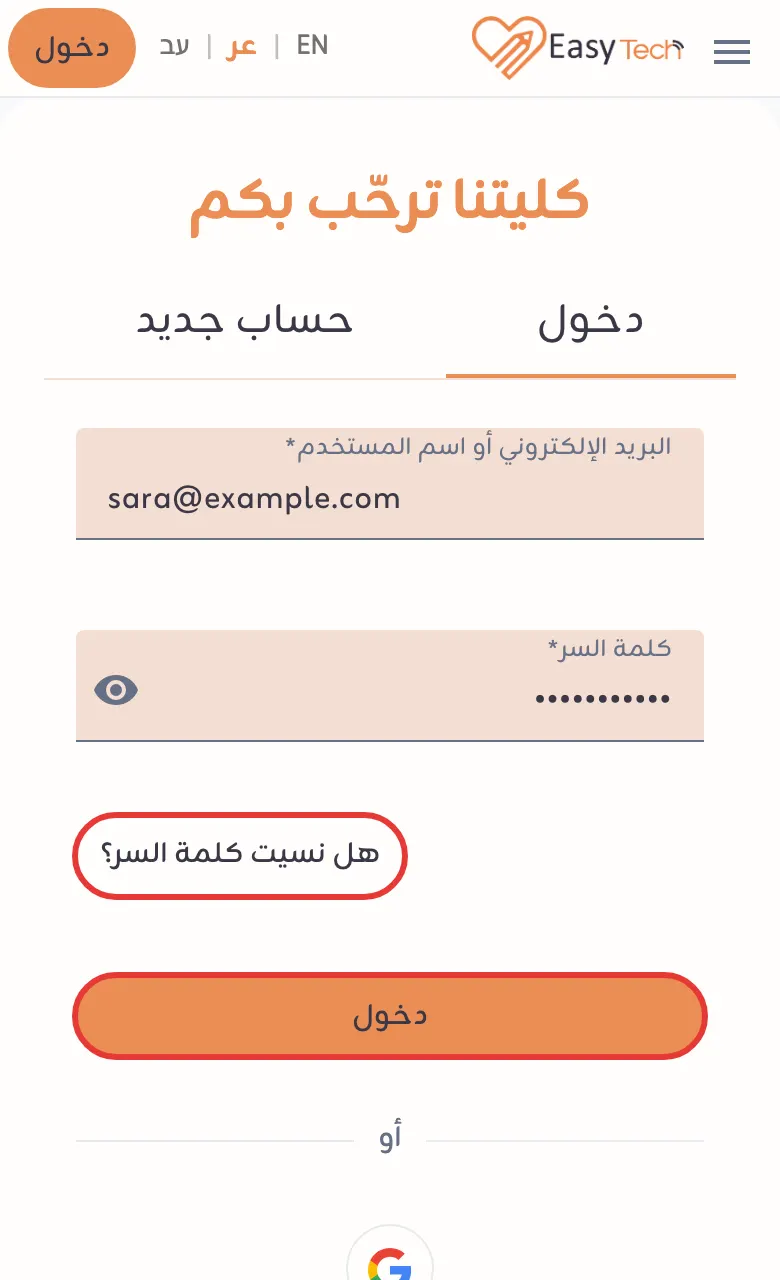
Tap «Sign in» at the top of the page, enter your email (or the username, for a child's account) and password, and tap «Sign in».
Forgot your password?
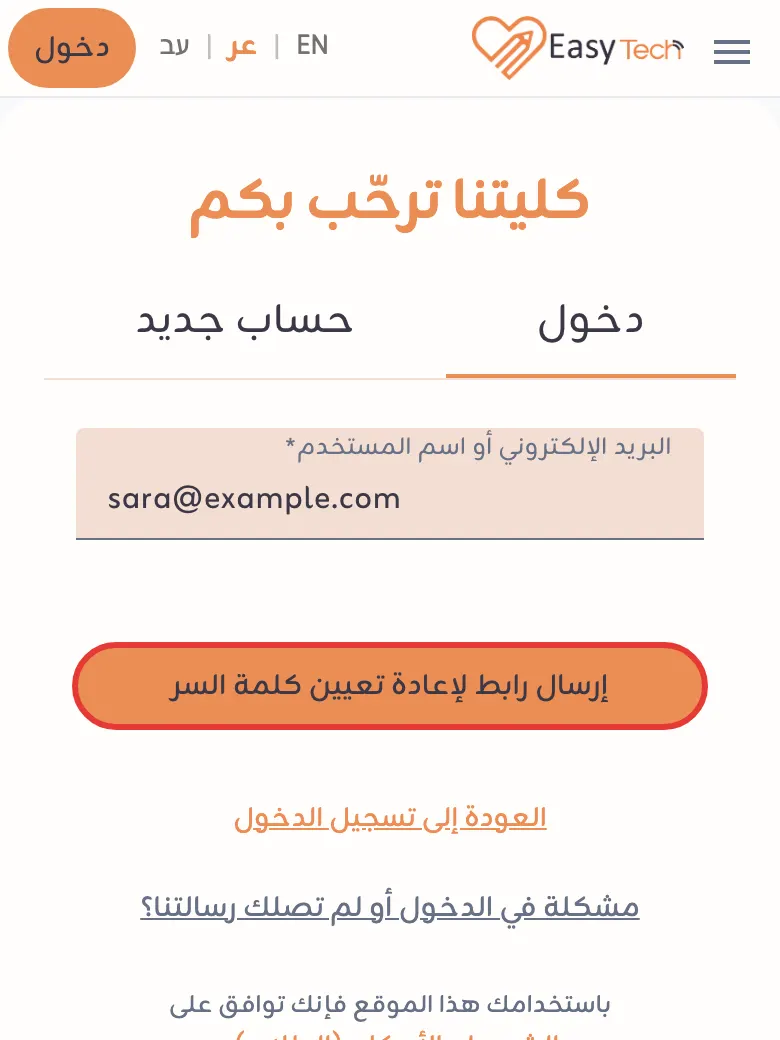
Tap «Forgot your password?», enter your email, and tap «Send a password reset link». Open the email you receive and choose a new password. No email arrives if that address has no account with us.
Didn't get our email?
Wait a few minutes, then search your mailbox for noreply@easytech.college. If our email is in your spam or junk folder, move it to your inbox as shown below so our next emails arrive where they belong. Button names may appear in your mailbox's language.
Gmail on a computer
Open the «Spam» folder in the side menu (it may be under «More»), open our email and click «Report not spam» at the top.
The Gmail app on a phone
Tap the menu button ☰, then «Spam», open our email and tap «Report not spam».
Outlook and Hotmail
Open the «Junk Email» folder, select our email and click «Not junk» (it may be inside the «Report» menu). To always receive our emails: Settings, then Mail, then Junk email, then Safe senders and domains, and add easytech.college.
Yahoo Mail
Open the «Spam» folder, open our email and click «Not spam» in the toolbar.
Apple Mail on iPhone and iPad
From «Mailboxes» open «Junk», open our email, tap the folder icon and choose «Inbox».
Apple Mail on a Mac
Open the «Junk» mailbox, select our email and click «Not Junk» in the bar above the message.
Tip: add noreply@easytech.college to your contacts. If the email isn't in any folder, check that your address is spelled correctly on your settings page, or contact us.
Still need help?
Write to us and we'll help you get into your account.